. Android Developers Blog

Monday, 3 July 2023

JetPack Compose: Basic TextView Sample in JetPack Compose

 Hi All,

     This is the very basic Text View Sample Jetpack compose.  


1. Text Color:
Change the text color using color parameter
@Composable
fun ColorText() {
    Text("Text in Red Color", color = Color.Red ,  modifier = Modifier
        .padding(8.dp) // margin
        .padding(8.dp) // padding
    )
}

2. Text Size: Change the text size using fontSize parameter
@Composable
fun TextWithSize(label : String, size : TextUnit) {
    Text(label, fontSize = size)
}

//TextWithSize("Big text",40.sp) -- call this method 
3.Bold Text: Use fontWeight parameter to making the bold text
@Composable
fun BoldText() {
    Text("Text in Bold", fontWeight = FontWeight.Bold,  modifier = Modifier
        .padding(8.dp) // margin
        .padding(8.dp)) // padding
}
4. Italic Text: Use fontStyle paramter to making the italic text
@Composable
fun ItalicText() {
    Text("Italic Text", fontStyle = FontStyle.Italic,  modifier = Modifier
        .padding(8.dp) // margin
        .padding(8.dp)) // padding
}
5. Maximum number of lines: To limit the number of visible lines in a Text composable, set the maxLines parameter,
@Composable
fun MaxLines() {
    Text("Text with Max line 2 ".repeat(50), maxLines = 2, modifier = Modifier
        .padding(8.dp) // margin
        .padding(8.dp)) // padding
}
6. Text Overflow: When limiting a long text, you may want to indicate a text overflow, which is only shown if the displayed text is truncated. To do so, set the textOverflow parameter
@Composable
fun OverflowedText() {
    Text("Text with three dot at end, Text Overflow  ".repeat(150),
        maxLines = 3, overflow = TextOverflow.Ellipsis,
        modifier = Modifier
            .padding(8.dp)) // margin
}

Download code from here

Thursday, 21 October 2021

Splash Screen API in Android 12 | Android 12 Splash Screen Example | Splash screens in Android 12 | Splash screen demo Using Splash Screen API | Splash Screen API Example

 Hi All,
         Today I am going to share a tutotial and a sample demo of Android 12 
Splash Screen Api.  Android 12 Splash screen api introduce in Android 12.

Android 12 adds the SplashScreen API, which enables a new app launch animation
for all apps when running on a device with Android 12 or higher. This includes an
into-app motion at launch, a splash screen showing your app icon, and a transition
to your app itself. 


Note: As Splash Screen  introduced in Android 12 so it will work on Android 
Api level 31 and above. 

We can Customize the Splash Screen Theme:
                - With the help of below attribute we can customize our Splash activity theme.

1. android:windowSplashScreenBackground : Used for Splash Screen background color.


#FFFFFF	

2. android:windowSplashScreenAnimatedIcon:  Used to replace an icon in
the center of the starting window. If the object is animatable and drawable through AnimationDrawable and AnimatedVectorDrawable, you also need to set windowSplashScreenAnimationDuration to play the animation while showing the
starting window.


	@drawable/splash_screen_animateable_icon
	
3. android:windowSplashScreenAnimationDuration : Used to indicate the duration of the splash screen icon animation. Max duration is 1000ms.


800	

4. 
android:windowSplashScreenIconBackgroundColor : Used to set a background behind
 the splash screen icon. This is useful if there isn’t enough contrast between the window
 background and the icon.


#004d28	

5. android:windowSplashScreenBrandingImage: We can use this to set an image to be shown at the bottom of the splash screen. The design guidelines recommend against using a branding image.


@drawable/ic_logo_12	

Keep the splash screen on-screen for longer periods:

The splash screen is dismissed as soon as your app draws its first frame. If you need to load a small amount of data such as in-app settings from a local disk asynchronously, you can use ViewTreeObserver.OnPreDrawListener to suspend the app to draw its first frame.

If your starting activity finishes before drawing (for example, by not setting the content view and finishing before onResume), the pre-draw listener is not needed.


override fun onCreate(savedInstanceState: Bundle?) {
        super.onCreate(savedInstanceState)
        setContentView(R.layout.activity_main)
        mainViewModel = ViewModelProvider(this).get(MainViewModel::class.java)
        content = findViewById(android.R.id.content)
        if (Build.VERSION.SDK_INT >= Build.VERSION_CODES.S) {
            Log.d("MainActivity", "onCreate: I AM RUNNING ON API 12 or higher")
            content.viewTreeObserver.addOnPreDrawListener(object :
                    ViewTreeObserver.OnPreDrawListener {
                    override fun onPreDraw(): Boolean =
                        when {
                            mainViewModel.mockDataLoading() -> {
                                content.viewTreeObserver.removeOnPreDrawListener(this)
                                true
                            }
                            else -> false
                        }
                })
        }
    }	
Customizing Splash Screen Animation: In Android 12 we get the Splash screen 
instance by calling getSplashScreen() from Activity class. So we can further customize
the animation of the splash screen through Activity.getSplashScreen().
        splashScreen.setOnExitAnimationListener { splashScreenView ->
            val slideUp = ObjectAnimator.ofFloat(
                splashScreenView,
                View.TRANSLATION_Y,
                0f,
                -splashScreenView.height.toFloat()
            )
            slideUp.interpolator = AnticipateInterpolator()
            slideUp.duration = 200L

            // Call SplashScreenView.remove at the end of your custom animation.
            slideUp.doOnEnd { splashScreenView.remove() }

            // Run your animation.
            slideUp.start()
        }	
Code: MainActivity.kt
package com.example.android12splashscreenapi

import android.animation.ObjectAnimator
import android.os.Build
import android.os.Bundle
import android.util.Log
import android.view.View
import android.view.ViewTreeObserver
import android.view.animation.AnticipateInterpolator
import androidx.appcompat.app.AppCompatActivity
import androidx.core.animation.doOnEnd
import androidx.lifecycle.ViewModelProvider

class MainActivity : AppCompatActivity() {
    lateinit var content: View
    lateinit var mainViewModel: MainViewModel
    override fun onCreate(savedInstanceState: Bundle?) {
        super.onCreate(savedInstanceState)
        setContentView(R.layout.activity_main)
        mainViewModel = ViewModelProvider(this).get(MainViewModel::class.java)
        content = findViewById(android.R.id.content)
        if (Build.VERSION.SDK_INT >= Build.VERSION_CODES.S) {
            Log.d("MainActivity", "onCreate: I AM RUNNING ON API 12 or higher")
            content.viewTreeObserver.addOnPreDrawListener(object :
                    ViewTreeObserver.OnPreDrawListener {
                    override fun onPreDraw(): Boolean =
                        when {
                            mainViewModel.mockDataLoading() -> {
                                content.viewTreeObserver.removeOnPreDrawListener(this)
                                true
                            }
                            else -> false
                        }
                })

            // custom exit on splashScreen
            splashScreen.setOnExitAnimationListener { splashScreenView ->
                val slideUp = ObjectAnimator.ofFloat(
                    splashScreenView,
                    View.TRANSLATION_Y,
                    0f,
                    -splashScreenView.height.toFloat()
                )
                slideUp.interpolator = AnticipateInterpolator()
                slideUp.duration = 200L

                // Call SplashScreenView.remove at the end of your custom animation.
                slideUp.doOnEnd { splashScreenView.remove() }

                // Run your animation.
                slideUp.start()
            }
        }
    }
}


Reference
:

Note: For updating/migraating your older app  for Android 12 please check below
tutorial.


Download Complete Code Here
Hope this will help Someone.
Enjoy Coding ..........................  :)


Tuesday, 28 September 2021

Android Jetpack Compose Toolbar example | Jetpack Compose TopAppBar

Hi Friends,
              Many of us looking for Toolbar example in Jetpack Compose or
TopAppBar example in Jetpack compose. Today I am going to share  you 
a sample which helps you in creating Toolbar in Jetpack compose.
Also in this tutoriail I am providing you how to create toolbar menu item using
JetPack Compose.


Source Code:


Complete Activity class


Download code from here

Hope this will help someone.
Enjoy Coding............... :)

Android Jetpack Compose Dropdown menu Example | Dropdown menu using DropdownMenu Composable

Dropdown menu:
       We are going to use DropdownMenu Composable for creating dropdown menu.


fun DropdownMenu(
expanded: Boolean,
onDismissRequest: () -> Unit,
modifier: Modifier = Modifier,
offset: DpOffset = DpOffset(0.dp, 0.dp),
properties: PopupProperties = PopupProperties(focusable = true),
content: @Composable ColumnScope.() -> Unit
)

In Above code if expanded is true, the popup menu with dropdown content will be shown.
onDismissRequest will be called when the menu should be dismiss,
@Composable
fun DropdownDemo() {
    var expanded by remember { mutableStateOf(false) }
    val items = listOf(
        "Apple", "Banana", "Cherry", "Grapes",
        "Mango", "Pineapple", "Pear"
    )
    var selectedIndex by remember { mutableStateOf(0) }
    Column(
        modifier = Modifier
            .fillMaxSize()
            .wrapContentSize(Alignment.TopStart)
            .padding(all = 5.dp)
    ) {
        Text(
            items[selectedIndex],
            modifier = Modifier
                .fillMaxWidth()
                .clickable(onClick = { expanded = true })
                .background(
                    Color.Red
                ),
            color = Color.White,
            fontSize = 20.sp,
            textAlign = TextAlign.Start
        )
        DropdownMenu(
            expanded = expanded,
            onDismissRequest = { expanded = false },
            modifier = Modifier
                .fillMaxWidth()
                .background(
                    Color.Gray
                )
        ) {
            items.forEachIndexed { index, s ->
                DropdownMenuItem(onClick = {
                    selectedIndex = index
                    expanded = false
                }) {
                    Text(text = s)
                }
            }
        }
    }
}

Hope this will help someone.
Enjoy Coding.......... :)

Friday, 24 September 2021

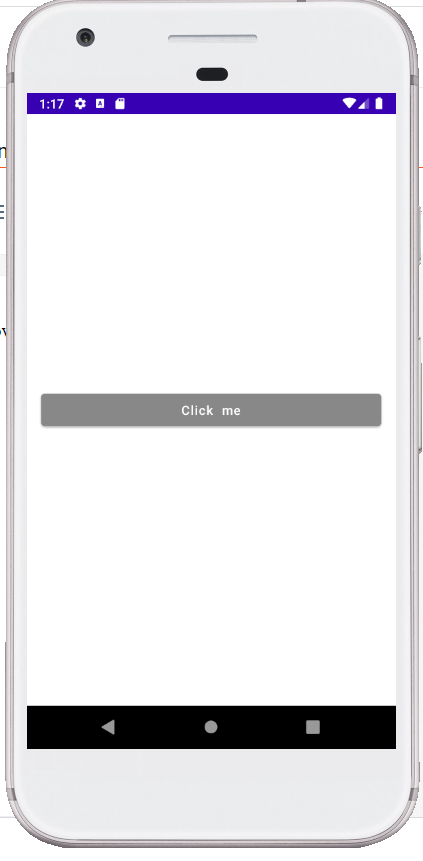
Android Jetpack Compose Button Example | How to center a button in jetpack Compose | How to onclick listener on button in Jetpack Compose

Hi Friends,
             Today I am sharing a Sample of Jetpack Compose Button view. I will show you how
to set onclick listener on button in Jetpack Compose. How to style on Button in
Jetpack Compse , how to set height and width of button in Jetpack compose.

  Code:
   

  Hope this will help someone.
  Enjoy Coding........... :) 


Android Jetpack compose- Android Listview using Jetpack compose | Jetpack compose listview clicklistener

 Hello all, 
        Today I am going to share my anothere Android Jetpack Compose tutoria.
How to set clicklistener on listview in android Jetpack Compses, how to set clicklistener 
on button using Jetpack Compse.


I am sharing below code where I am handling list item click in jetpack compose.


Downlaod complete code from here
Hope this will help someone.
Enjoy Coding....... :)

Android Jetpack Compose Alert Dialog Sample | Jetpack Compose Dialog

 Hi Friends,  
               Today I am sharing the Jetpack Compse Alert Dialog Sample.

What is Alert Dialog?
- Alert dialog is a Dialog which interrupts the user with 
urgent information, details or actions.


Code:

Hope this will help someone.
Enjoy Coding........ :)


Thursday, 23 September 2021

How to get Context in Jetpack Compose

Hello All,
            Many of us facing issue in using/getting context in JetPack Compose.
Here I am sharing a composbale function where I am using context for showing toast message.


Android Jetpack Compose- An easy way to RecyclerView | How to create a RecyclerView in Jetpack Compose | LazyColumn-JetPack Compose

 Hello Friends,
        Today I am going to share a my another JetPack Compose tutorial.
Here I am going to share you the creation of listview/recyclerview using 
Compose.


Creating a listview/recyclerview in Compose:
                                            Creating a listview/recyclerview in Compose is easy.
No Adapter. No View holder.


What is LazyColumn?
- A LazyColumn is a vertically scrolling list that only composes and lays out the currently visible items. It’s similar to a Recyclerview in the classic Android View system.


Download code from here
Hope this will help someone.
Enjoy Coding......................... :)

Wednesday, 22 September 2021

Android Jetpack- Jetpack cardview sample

 Hi All,
         Today I am going to share Jetpack CardView sample. Here I am going to create a simple android cardview UI  withoutt using the android Xml and layout editor.

We are going to build the UI using Composable funtion(i.e: using Jetpack Compse).

Column :  We are going to use Column function for arranging the view vertically.
For arranging the view horizontally you can use Row function.


 Check MainActivity.kt file for Code,


Download complete code here

Hope this will help someone.
Enjoy coding.... :)

Tuesday, 21 September 2021

Android Jetpack- Composable functions


Jetpack Compose is built around composable functions. These functions
let you define your app's UI programmatically by describing how it
should look and providing data dependencies, rather than 
focusing on the process of the UI's construction (initializing an 
element, attaching it to a parent, etc.).
To create a composable function, just add the @Composable annotation
to the function name.


Enjoy Coding.... :)

Saturday, 4 September 2021

Android Jetpack Compose-Android Gradle plugin requires Java 11 to run. You are currently using Java 1.8

 Hi All, 
            Many of us facing below issue  while running the Android Jetpack 
Compose Project.

> Failed to apply plugin 'com.android.internal.application'.
    > Android Gradle plugin requires Java 11 to run. You are currently using Java 1.8.
    You can try some of the following options:
    - changing the IDE settings.
    - changing the JAVA_HOME environment variable.
    - changing `org.gradle.java.home` in `gradle.properties`.

In order to fix this issue we need to use Java 11. You can find it in Preferences > Build, Execution, Deployment > Build Tools > Gradle > Gradle JDK.


Hope this will help some one.
Enjoy Coding.......  :)


Wednesday, 1 September 2021

Android Jetpack Compose- Android Studio with Jetpack Compose Getting Started | Jetpack Compose Tutoria


Hi All,
  
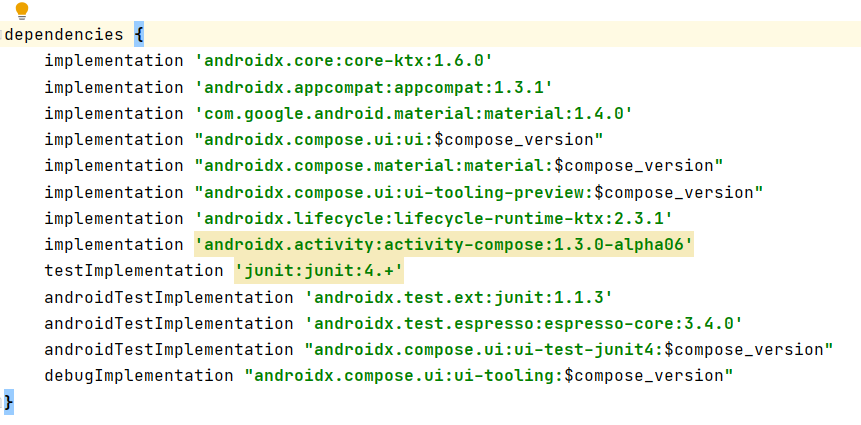
Today I am going to share my first JetPack Compose Tutorial. Here we learn how\nto setup android compose in android studio. We see the rquired dependency and other settings.

Step 1: Installation:  First we have to download Android Studio Arctic Fox. That’s because when we use Android Studio to develop our app with Jetpack Compose, we can benefit from smart editor features, such as New Project templates and the ability to immediately
preview our Compose UI.

Step2: Create android app :  After the installint of latest android studio from link now lets 
create an app.
  • Open Android Studio > select File > New > New Project from the menu bar.  
  • In the Select a Project Template window, select Empty Compose Activity and click Next.
  • In the Configure your project window, do the following:
    1. Set the NamePackage name, and Save location as you normally would.
    2. Note that, in the Language dropdown menu, Kotlin is the only available option because Jetpack Compose works only with classes written in Kotlin.
    3. In the Minimum API level dropdown menu, select API level 21 or higher.
  • Click Finish.  


   You can see below dependecny in your app build.gradle file which is required for Compose.


 For more check this tutorial

While setting it if you are facing issue of  "Android Gradle plugin requires Java 11 to run. You are currently using Java 1.8". Plesase check this tutorial

Hope this will help some one.
Enjoy Coding....... :)

Monday, 11 May 2020

Kotlin - Enum Classes in Kotlin | Enum Methods | Enum Properties

Hello Friend,
              Today I am going to share about Enum class in Kotlin
 

- How to create/initialize enum classes
- methods and properties of enum classes.


Initializing enums –


Now we can easily access the color of fruits,
Enum Methods-

  1. values: This method returns a list of all the constants defined within the enum class.
  2. valueOf: This methods returns the enum constant defined in enum, matching the input string.  If the constant, is not present in the enum, then an IllegalArgumentException is thrown.

Enum Properties-

  1. ordinal: This property stores the ordinal value of the constant, which is usually a zero-based index.
  2. name: This property stores the name of the constant.
Below is the example which help us to understand the uses of Enum method and Properties.
Outputs:

Hope this will help some one.
Enjoy Coding... :)

Kotlin - Android notification in kotlin | Android MVP in Kotlin

Hello Friends,
       Lets first tell you what is notification.


Notification is a message that is used to display some short messages outside of our main application. Even if the app is not running, notifications will still work. Notifications have the following contents: an icon, title of notification and some text content.

Now today I am going to share , how create notification in Kotlin.

Download code from here
Hope this will helps someone..
Enjoy Coding.... :)

Friday, 3 January 2020

Mobile World : The next version of Android is officially Android 11 | About android 11 release in 2020 | Android 11 name | Features coming in Android 11


Android 11:   Next Alphabet R Android 11 soon to Arrive

Google is all set to introduce Android 11 after success of its Android 9 and Android 10 in queue. Much of the information is not disclosed for now but is awaited and speculation is that Android 11 will be more oriented on dual display.

Android launch date is expected around September 2020 but rumours had started already. Android 11 will be available for free.  After Android Q version this Android 11 will be called Android R as expected alphabetically. Also, the trends of naming their android after desserts is also said to be maintained.  Android 10 was in some non-Google company like Oneplus 7T and 7T Pro but possibly it could be different for Android 11. Although it will be available for smart phones who want to be upgrade possibly.

Android 11 in Smart phones

If to put in simple language Android is an open source operating system that powers Google and Smart phones. Also, this operating system is based on a modified version of the Linux Kernel. It’s a decade old and the most popular mobile operating system in world.  Android 11 like other Android software is for smart phones and tablets. Although to compare it with iPhones, Androids varies a lot. But today both are multitasking. Android 11 like other old version will be empowering Samsung series, Xperia, HTC series and many more.  It is at least believes to be on pixel phones.

Android 11 features
Now if talking about Android 11 features, most of it is unknown for now and soon expected to be disclosed but expectation are “Scoped Storage” which is supposed to be in Android 10 but Google pushed it back due to complaints from Android developers. This feature makes memory read speeds much quicker, improves security, and stops you needing to give every new apps permission.  Also all those features which is gone missing or not as expected in Android 10 will be anticipated to be there in Android 11. Just to name few:


1.  Near field Communication (NFC)
NFC determines how your Android phone connects or interacts with the nearest device. This connection does not depend on Wi-Fi, 3G or LTE.  It helped users to share videos, photos, music by not using any apps but by pressing phone against each other.  But this feature is gone now and causes hindrance to share. NFC is expected in Android 11 to get away with this problem of sharing.

2. Improvement in Dark Mode
Using phone in darker made is a treat to eye. It makes different apps look way far better than it is normally.  Android 10 has lots of problem regarding it. Every app does not have to have its darker mode feature, so if smart phone has it already it will reduce much inconvenience of jumping to different apps. Also on apps that do have dark mode some text aren’t colour wrapped and go invisible. Having better dark mode option is what in line of expectation from Android 11.


3. Easy access like “Chat bubbles” 
Chat bubbles over the top of the apps which enables you to see your whole conversations while you are on other apps. Isn’t amazing feature?  Like Facebook messenger, it should be an Android feature as well.  It allows you to use other apps while chatting. User does not have to dodge every time they get a message. It’s of utmost use when we need notification while working on other apps. Especially with Instagram, , Twitter, WhatsApp, Facebook . You can easily continue with your conversation anytime.


Android 11 Updates over different phones
                                So the phone that going to have this Android version is:
       Ã˜ Nokia:  After google, Nokia is the next original equipment
                       Manufacturer (OEM) which is expected to do software
                       upgrade. Their 'Android R' OTA update is to be done 
                       is – Nokia 9 Pure View
                                             Nokia 6.2
                                             Nokia 7.2
        
       Ã˜ Samsung:  Needless to mention that Samsung Galaxy S10 and 
                            Samsung Galaxy Note 10 will going to be upgraded
                            to  Android 11 Features.

       Ã˜Xiaomi:   The MIUI 12 will be expected to be based on 
                            Android R version.


Hope you like this article.
Enjoy reading article :)


Tuesday, 8 October 2019

Android MVP template | Android MVP Plugin

Hello Friends,
              Today I am sharing the android MVP template which make the development
Faster. This is an android studio template inspired by android view-model template.

When we follow Android MVP architecture in any project, for each module or feature
we need to create an Activity/Fragment,  a Presenter and a Contract class and also
a layout file corresponding to them. This is really an time taking process.

So Taking advantage of Android Studio template I created  a MVP template
which creates all this file at the start.

Getting Started

1.  Download the MVPActivity Teamplate ,which you found at the bottom of this blog.
2.  For WINDOWJust copy directory MVPActivity
                     to  $ANDROID_STUDIO_FOLDER$\plugins\android\lib\templates\activities\
3. For  Mac,  Just copy directory MVPActivity
                     to $ANDROID_STUDIO_FOLDER$/Contents/plugins/android/lib/templates/activities/


4. Below are the few common files,
       A. template.xml  – This will contain information about the template
             name, minSdkVersion, etc    


     B. recipe.xml.ftl - This will contain instructions explaining how to
            create the template, including what variables to ask the user for and
            what should be done with those variables.
    C. globals.xml.ftl – This defines global variables

    D. root/ folder – this will contain the template code.


Download code from here
Hope this will helps some one...
Enjoy Coding........... :)

Monday, 7 October 2019

Kotlin Android - RecyclerView Example

Hello Friends,
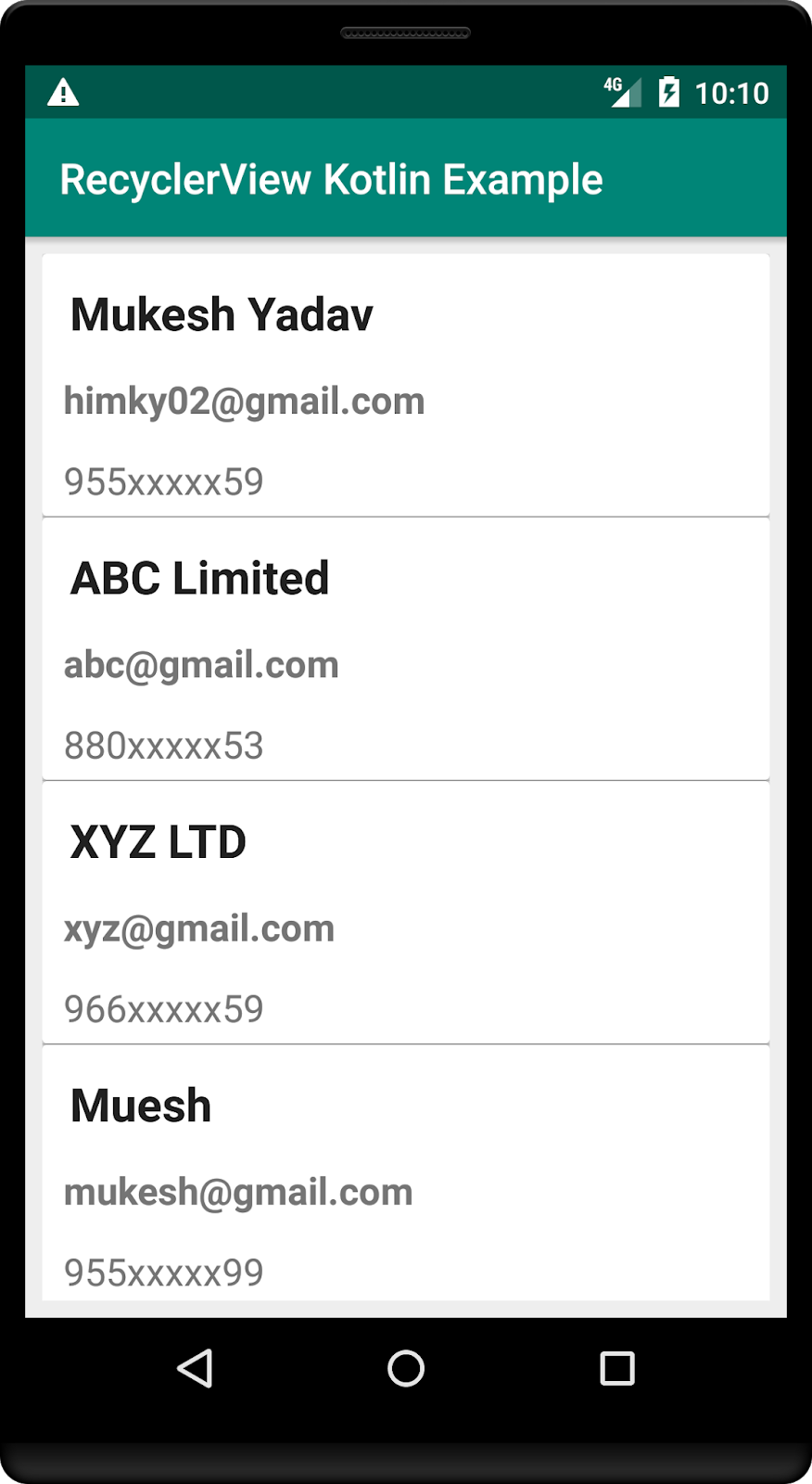
          Today I am sharing the demo of RecyclerView in Kotlin.
A RecyclerView is essentially a ViewGroup of containers called ViewHolders which
populate a particular item.


So lets first familiar with RecyclerView and What RecyclerView requires:
1. It requires a set of data objects to work with
2. An xml file of the individual view item
3. An adapter to bind that data to the views shown in the ViewHolders
4. ViewHolder to populate the UI from the xml item file


Getting Started

Download code from here
Hope this will helps someone.
Enjoy coding.... :)

Saturday, 5 October 2019

Kotlin Android – AlertDialog – Example

Hello Friends,
                Here is the demo Alert Dialog in Kotlin. Android AlertDialog class
                is used to display a dialog box to user with positive and negative buttons.
It Appears on top of the activity layout. You may not physically access any other
UI components of activity. It will be run on UI thread.


To Create an AlertDialog, step by step process is :

1. Create an AlertDialog Builder using the activity’s context.
2. Set message content using the builder.
3. Set Positive Button Text and Action to be taken when the button is clicked using the builder.
4. Set Negative Button Text and Action to be taken when the button is clicked using the builder.
5. Create AlertDialog from the builder.
6. You may set the title to the AlertDialog box using setTitle() method.

1. MainActivity.kt
package com.android.developer.soulutions.myapplication

import android.content.DialogInterface
import android.support.v7.app.AppCompatActivity
import android.os.Bundle
import android.support.v7.app.AlertDialog
import kotlinx.android.synthetic.main.activity_main.*

class MainActivity : AppCompatActivity() {

    override fun onCreate(savedInstanceState: Bundle?) {
        super.onCreate(savedInstanceState)
        setContentView(R.layout.activity_main)
        btnShowAlert.setOnClickListener {
            // build alert dialog
            val dialogBuilder = AlertDialog.Builder(this)

            // set message of alert dialog
            dialogBuilder.setMessage("Do you want to close this  ?")
                    // if the dialog is cancelable
                    .setCancelable(false)
                    // positive button text and action
                    .setPositiveButton("OK", DialogInterface.OnClickListener { dialog, id ->
                        finish()
                    })
                    // negative button text and action
                    .setNegativeButton("Cancel", DialogInterface.OnClickListener { dialog, id ->
                        dialog.cancel()
                    })

            // create dialog box
            val alert = dialogBuilder.create()
            // set title for alert dialog box
            alert.setTitle("AlertDialogExample")
            // show alert dialog
            alert.show()
        };
    }
}
 

Download the code from here

Hope this will helps someone.
Enjoy Coding................... :)


Friday, 14 December 2018

React Native- Invariant Violation: The navigation prop is missing for this navigator | react-navigation 3- navigation prop is missing for this navigator.

Hello Friend,
       Recently I faced few issue while implementing the react-navigation in my app.
I spent lots of time in it and then finally I found the actual cause of it.

1. undefined is not an object (evaluating 'RNGestureHandlerModule.State')


Then I follow following steps to resolve this,

  1. remove node_modules and package-lock.json
  2. npm install
  3. npm install --save react-navigation
  4. npm install --save react-native-gesture-handler
  5. react-native link
After following this I face another issue i:e,


2. Invariant Violation: The navigation prop is missing for this navigator. In 
react-navigation 3 you must set up your app container directly. More info: 
https://reactnavigation.org/docs/en/app-containers.html


Note  This is an react-navigation 3.0 bug. You can go through the below link for more details. 

- React Navigation 3.0 has a number of breaking changes including an explicit app container required for the root navigator.

In the past, any navigator could act as the navigation container at the top-level of your app because they were all wrapped in “navigation containers”. The navigation container, now known as an app container, is a higher-order-component that maintains the navigation state of your app and handles interacting with the outside world to turn linking events into navigation actions and so on.

In v2 and earlier, the containers in React Navigation are automatically provided by the create Navigator functions. As of v3, you are required to use the container directly. In v3 we also renamed createNavigationContainer to createAppContainer.


Below are the complete code,

/**
 * This is an example code for Navigator
 */
import React, { Component } from 'react';
import {createStackNavigator,createAppContainer} from 'react-navigation';
 
import FirstPage from './src/component/FirstPage';
import SecondPage from './src/component/SecondPage';
//import all the screens we are going to switch 
 
const RootStack = createStackNavigator({
    //Constant which holds all the screens like index of any book 
    FirstPage: { screen: FirstPage }, 
    //First entry by default be our first screen if we do not define initialRouteName
    SecondPage: { screen: SecondPage }, 
  },
  {
    initialRouteName: 'FirstPage',
  }
);
const App = createAppContainer(RootStack);


Download complet code from here
Hope this will helps someone........

Enjoy coding..... :)


Copyright @ 2013 Android Developers Blog.